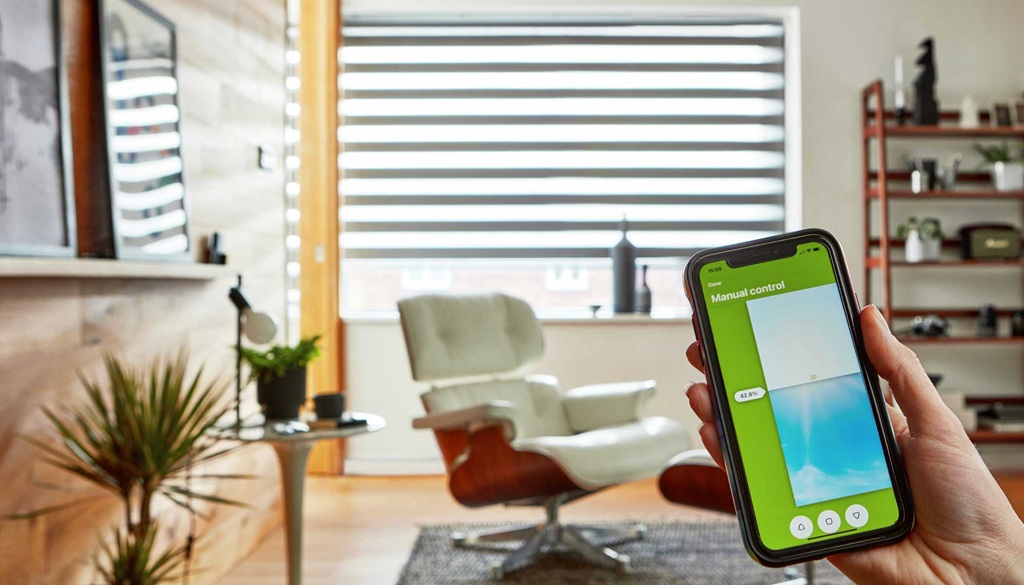
Smart blinds are no longer a futuristic fantasy; they’re a convenient, stylish, and energy-efficient reality in many modern homes. Whether you call them motorized shades, automated blinds, or smart window treatments, their ability to open, close, and adjust on command – via remote, app, or even voice – adds a touch of luxury and practicality to everyday life. But like any sophisticated technology, they occasionally need a tune-up. This is where calibration comes in. Getting your smart blinds perfectly calibrated ensures they operate flawlessly, respond accurately, and truly live up to their “smart” potential. This guide will walk you through why calibration is crucial, how to do it, and how to troubleshoot common issues.
Why Bother Calibrating Your Smart Blinds?
You might wonder, “They go up and down, isn’t that enough?” While basic functionality might seem okay initially, proper calibration unlocks the true power and longevity of your smart blinds. Think of it like tuning a musical instrument; without it, you won’t get the beautiful harmony you expect.
Calibration essentially teaches your smart blind motor its boundaries – precisely where the fully open (upper limit) and fully closed (lower limit) positions are. Without this knowledge, several problems can arise. Firstly, accuracy is key. You want your blinds to stop exactly where you tell them to, whether it’s fully closed for movie night, halfway open for gentle morning light, or precisely 75% closed via a voice command. Incorrect calibration leads to blinds stopping short, going too far, or not aligning evenly if you have multiple blinds in one window. Secondly, automation relies on precision. Smart home routines, like having your blinds automatically open at sunrise and close at sunset, depend on the blinds knowing their exact limits. If the calibration is off, these automations won’t work as intended, diminishing the convenience factor. Furthermore, proper calibration protects your investment. Forcing the motor to push past its intended physical limits (either up or down) can cause unnecessary strain, potentially leading to premature wear and tear or even motor damage. Finally, calibration is often the first step in troubleshooting. If your blinds are acting erratically, unresponsive, or moving unevenly, resetting and recalibrating can often resolve the issue without needing further intervention.
Signs Your Smart Blinds Need a Tune-Up (Calibration)
How do you know if your smart blinds are silently crying out for calibration? Keep an eye (and ear) out for these common indicators:
- Uneven Closing/Opening: Do multiple blinds in the same room or window stop at slightly different heights? This is a classic sign that their limits aren’t synchronized.
- Not Fully Opening or Closing: Does the blind stop short of the top of the window frame when opening, or leave a gap at the bottom when closing? The limits likely need adjustment.
- Overshooting Limits: Does the blind try to roll up too far into the headrail or push down too hard against the windowsill? This indicates the limits are set incorrectly and could strain the motor.
- Unresponsive to Specific Commands: If percentage-based commands (e.g., “Set blinds to 50%”) or favorite position settings don’t work accurately, calibration is usually the culprit.
- Jerky or Hesitant Movement: While sometimes indicating a power or obstruction issue, jerky movements can also occur if the motor is unsure of its position due to poor calibration.
- App/Remote Discrepancies: Does the app think the blind is closed when it’s actually slightly open? This mismatch often points to a need for recalibration.
- After Power Outage or Reset: Sometimes, power interruptions or factory resets can wipe the motor’s memory, requiring recalibration.
If you notice any of these signs, don’t worry! A simple calibration process is usually all that’s needed to get things running smoothly again.
Your Step-by-Step Smart Blind Calibration Guide
Calibrating smart blinds might sound technical, but it’s generally a straightforward process. While the exact steps vary slightly between brands and models (always consult your manufacturer’s manual first!), the core principles remain the same.
General Calibration Steps (Applicable to Most Brands):
-
Preparation:
- Ensure the blind is receiving power (check batteries or wired connections).
- Have the designated remote control or smartphone app ready.
- Make sure the blind has been initially paired or linked with its controller (remote/app/hub). Some systems require the blind to be “woken up” from shipping/sleep mode first, often by pressing a button on the motor itself.
-
Enter Programming/Calibration Mode:
- This usually involves pressing and holding a specific button (or combination of buttons) on the remote control or sometimes a button directly on the blind motor head itself.
- Common methods include:
- Pressing and holding UP and DOWN buttons simultaneously.
- Pressing and holding a dedicated “Program” or “Set” button (often on the back of the remote or on the motor).
- Using a specific sequence within the manufacturer’s app.
- You’ll typically get confirmation that you’re in programming mode via an LED light flashing on the remote or motor, or the blind itself might “jog” (a small up-and-down movement).
-
Set the Upper Limit:
- Once in programming mode, the system will usually prompt you to set the upper limit first.
- Use the UP button on the remote or app to move the blind to your desired fully open position (e.g., just below the headrail). You can often use short presses for fine-tuning and long presses for faster movement.
- Once positioned correctly, press and hold a confirmation button (like “My,” “Stop,” “Set,” or sometimes the UP button again, depending on the brand) until the blind jogs or the LED flashes to confirm the upper limit is saved.
-
Set the Lower Limit:
- The system will typically automatically move to setting the lower limit next (often indicated by a different LED pattern or another jog).
- Use the DOWN button to move the blind to your desired fully closed position (e.g., resting gently on the windowsill or reaching the floor). Again, use short/long presses for adjustment.
- Confirm the lower limit by pressing and holding the designated confirmation button (often “My,” “Stop,” “Set,” or the DOWN button) until confirmation (jog/flash) is received.
-
Set a Favorite/Intermediate Position (Optional but Recommended):
- Many smart blinds allow you to set a ‘favorite’ or ‘My’ position (e.g., halfway open).
- Move the blind to your desired favorite spot using the UP/DOWN buttons.
- Press and hold the “My” or “Favorite” button (or follow app instructions) until the blind jogs, confirming the position is saved.
-
Save and Exit Programming Mode:
- Often, confirming the lower limit automatically saves all settings and exits programming mode.
- Some systems require a final confirmation step, like pressing and holding the “My” or “Stop” button, or pressing the programming button on the back of the remote briefly.
- Test the blind by using the remote/app to send it to the fully open, fully closed, and favorite positions to ensure the limits are set correctly.
Brand-Specific Notes (Always Check Your Manual First!):
-
Somfy:
Often involves pressing and holding UP+DOWN to enter programming, using UP/DOWN to position, and MY+DOWN then MY+UP combinations to set limits, followed by holding MY to confirm, and finally pressing the rear programming button. Resetting often involves holding the motor button for ~12 seconds until it jogs three times.
-
Lutron (Serena/Triathlon):
Typically uses the Pico remote. Enter programming by tapping the shade button, then holding Open+Raise. Use Raise/Lower to position. Hold Open to set the upper limit, hold Close to set the lower limit. Requires shade to be assigned to the Pico first.
-
IKEA (FYRTUR/KADRILJ):
These Zigbee blinds pair with a remote and optionally the TRÅDFRI gateway/IKEA Home Smart app. Basic operation uses short presses on the remote for full travel and long presses to stop at a desired point. Limit setting might be implicitly handled during initial pairing or potentially adjusted via the app or specific button presses (information can be sparse; sometimes requires pairing directly with Zigbee hubs like Zigbee2MQTT for finer control, where 100% might mean fully open). Resetting often involves pressing both buttons on the blind itself.
-
Hunter Douglas PowerView:
Calibration is usually done through the PowerView App during setup, guiding you through setting open and closed limits. Manual adjustments might involve the remote and programming button on the motor head.
-
Eve MotionBlinds (Thread):
Calibration is primarily handled through the Eve for HomeKit app. It includes specific calibration routines to set upper and lower limits accurately. Resetting involves holding the motor button for 10 seconds.
-
Generic Zigbee/Z-Wave/Wi-Fi Blinds (e.g., Smartify, SmartWings, Zemismart):
Procedures vary widely. Many use apps like Smart Life or Tuya, which have calibration routines (sometimes quick or precise modes). These might involve setting travel times in seconds or using UP/DOWN/STOP combinations similar to Somfy or Lutron. Resetting often involves specific button presses on the motor or switch. SmartWings notes motors arrive in “Sleep Mode” and need activation first. They also advise against adjusting limits for certain fabric types like zebra shades due to potential misalignment.
Related: How to Clean and Maintain Blinds for French Doors
Troubleshooting Calibration Issues:
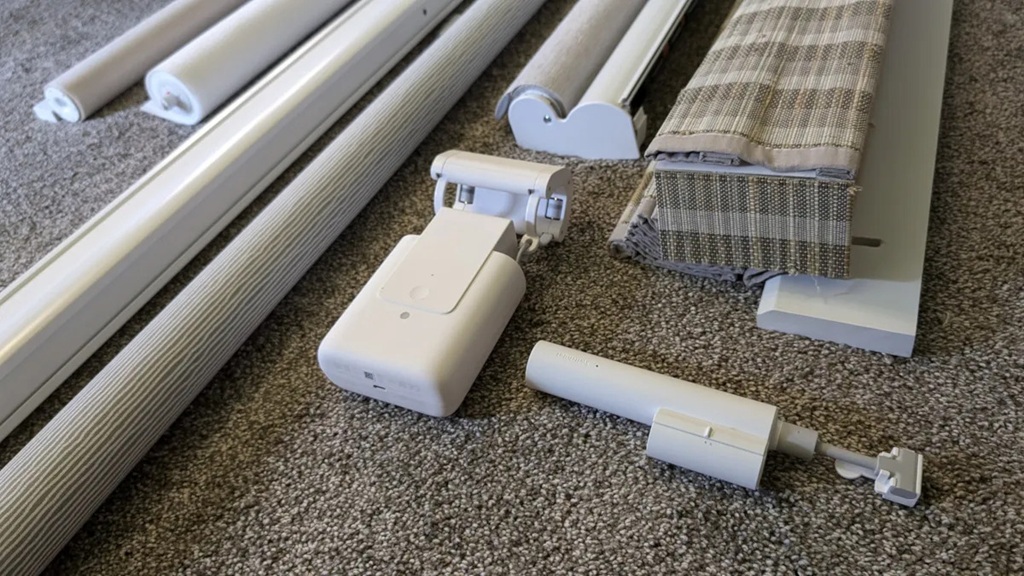
- Blind Doesn’t Respond: Check power/batteries. Ensure the remote is paired correctly. Check for physical obstructions. Try waking the motor from sleep mode.
- Blind Moves in Wrong Direction: Most systems have a motor direction reversal function, often involving pressing and holding a specific button (like the PAIR button on RYSE or the ‘P’ button then UP+DOWN on some SmartWings remotes) for a few seconds.
- Can’t Enter Programming Mode: Ensure you’re using the correct button combination and holding it long enough. Check remote batteries. Try resetting the motor to factory defaults first (check manual for procedure – often involves holding the motor button for an extended period).
- Limits Won’t Save: Make sure you’re holding the confirmation button long enough until the jog/flash occurs. Ensure you are exiting programming mode correctly.
- Uneven Movement Still Exists: Check for physical obstructions or anything causing drag on one side. Ensure the roller tube isn’t sagging (more common on very wide blinds). Check barrel alignment within the headrail if applicable (MySmartBlinds).
- App Shows Incorrect Status/Battery: Recalibration often fixes this. If battery readings are erratic (jumping from high to low quickly), it could indicate a calibration issue or potentially a faulty battery (Eve MotionBlinds troubleshooting). Ensure firmware is updated.
Keeping Your Blinds Perfectly Tuned: Maintenance Tips
Once calibrated, your smart blinds should operate smoothly for a long time. However, a little preventative maintenance doesn’t hurt:
- Regular Checks: Operate the blinds through their full range of motion occasionally to ensure they still hit their limits accurately.
- Keep Paths Clear: Ensure window sills, furniture, or decorations don’t obstruct the blinds’ movement.
- Firmware Updates: Regularly check for and install firmware updates via the manufacturer’s app. These updates often include performance improvements and bug fixes that can affect operation and calibration.
- Battery Health: For battery-powered blinds, charge them before they become completely depleted. Check battery levels periodically via the app.
- Clean Gently: Clean the blinds according to manufacturer instructions, avoiding harsh chemicals near the motor head.
Related: Does the Living Room Have Two Windows in Spanish?
People Also Ask (FAQs) about Smart Blind Calibration
Q1: Do I need to calibrate my smart blinds when I first install them?
A: Yes, almost always. Most smart blinds require initial calibration after installation and pairing to learn the specific dimensions of your window and set the upper and lower travel limits correctly. Some may come with preset limits, but these often need adjustment for a perfect fit.
Q2: How often should I recalibrate my smart blinds?
A: You typically only need to recalibrate if you notice problems like uneven movement, inaccurate stopping points, or after a factory reset or significant power event. If they are working correctly, recalibration isn’t usually necessary on a regular schedule.
Q3: Can I set the limits using just the smartphone app?
A: It depends on the brand. Some systems (like Hunter Douglas PowerView or Eve MotionBlinds) rely heavily on the app for setup and calibration. Others might require using the physical remote for initial limit setting, even if you primarily use the app later (like Lutron or SmartWings). Some apps (like Smartify or Blinds 2go SmartView) have dedicated “Set new limits” functions within their settings.
Q4: What happens if I don’t calibrate my smart blinds?
A: They might not open or close fully, stop inaccurately, move unevenly (especially in groups), fail to respond correctly to percentage or scene commands, and potentially experience increased motor strain if they try to push past physical limits.
Q5: My blinds are making a weird noise after calibration. What should I do?
A: First, double-check for obstructions. Ensure everything is aligned correctly. If the noise persists (grinding, clicking), it could indicate a mechanical issue unrelated to calibration. Consult the manufacturer’s troubleshooting guide or contact customer support.
Q6: Resetting vs. Recalibrating – What’s the difference?
A: Resetting usually returns the motor to its factory default settings, erasing stored limits and remote pairings. Recalibrating specifically involves teaching the motor the upper and lower limits of travel for your window. You almost always need to recalibrate after performing a factory reset.
Q7: Can adjusting limits damage my blinds?
A: If done incorrectly (e.g., setting limits that force the motor to strain), potentially yes. However, following the proper calibration procedure is safe and actually helps prevent damage by ensuring the motor operates within its intended range. Always stop the blind gently at the desired limit during setup.
Conclusion: The Simple Path to Smarter Shading
Calibrating your smart blinds is a small investment of time that pays significant dividends in performance, convenience, and longevity. It transforms your motorized shades from simple up-and-down window coverings into precisely controlled elements of your smart home ecosystem. By understanding the process, recognizing the signs that recalibration is needed, and following the steps outlined here (while always prioritizing your manufacturer’s specific instructions), you can ensure your smart blinds operate flawlessly, accurately responding to your commands and automated schedules for years to come. Enjoy the perfectly tuned light control!